Plex Settings
For your device to play Plex Movies/Shows in the best quality (and less work on the Plex Server) you need to change some settings in your Plex App.
These settings need to be made on ALL the devices you use Plex on, ALL.
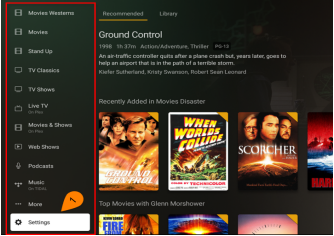
Open up the Plex App and while on the Home Screen navigate down until you see Settings.
If you don’t see Settings you’re either not logged into Cosy Plex, or not on the Plex Home Screen.
Highlight Settings and click to open the Settings page up.
Navigate to “Account” and set “Sign in Automatically” to save you signing in each time you open Plex.
Then navigate down to “Video Quality”
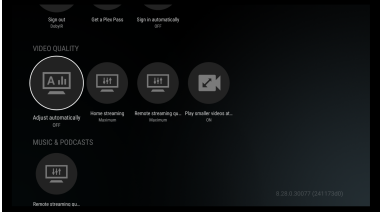
The first setting to check is “Adjust Automatically” this must be turned OFF/unchecked/deactivated !!
Home streaming can be ignored.
Quality Suggestions must be set to OFF.
Then navigate right, highlighting “Remote Streaming” and select it, then CHANGE IT to Maximum.
Ignore any other settings as they won’t apply to you.
Optional extra settings are:
Subtitles, you may customise them as you wish.
Audio, you may set Passthrough to hdmi if, and only if, you know what it is, means and you know what you’re doing. Otherwise leave as is.
These should be the only Setting changes needed.