CosyFin Settings
For your device to play CosyFin Movies/Shows in the best quality (and less work on the CosyFin Server) you need to change some settings in your CosyFin App/s.
These need to be done on ALL of your devices, ALL!
If you don’t see Settings you’re either not logged into CosyFin, or not on the CosyFin Home Screen.
The default Playback settings seem to be okay but if you’d like to change them you can follow the instructions below (photos are of Emby but pretty much the same).
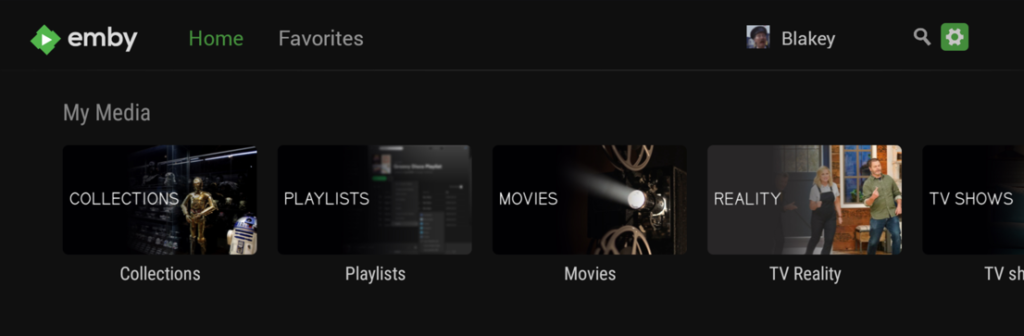
Navigate to the settings icon (Settings tab in Apple TV) up top and to the right, highlight it and click to open up the Settings page.
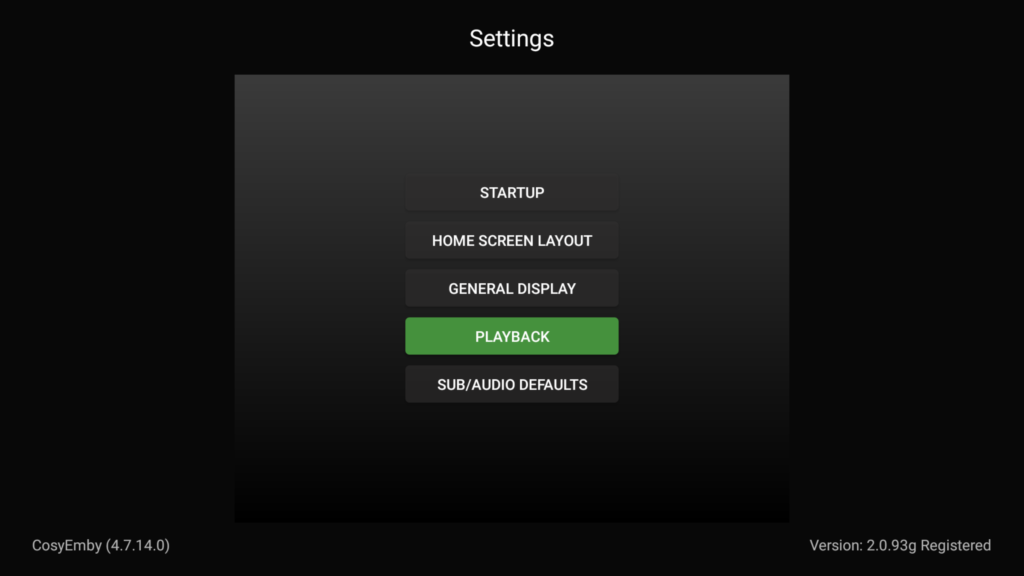
Now scroll down and highlight “PLAYBACK”
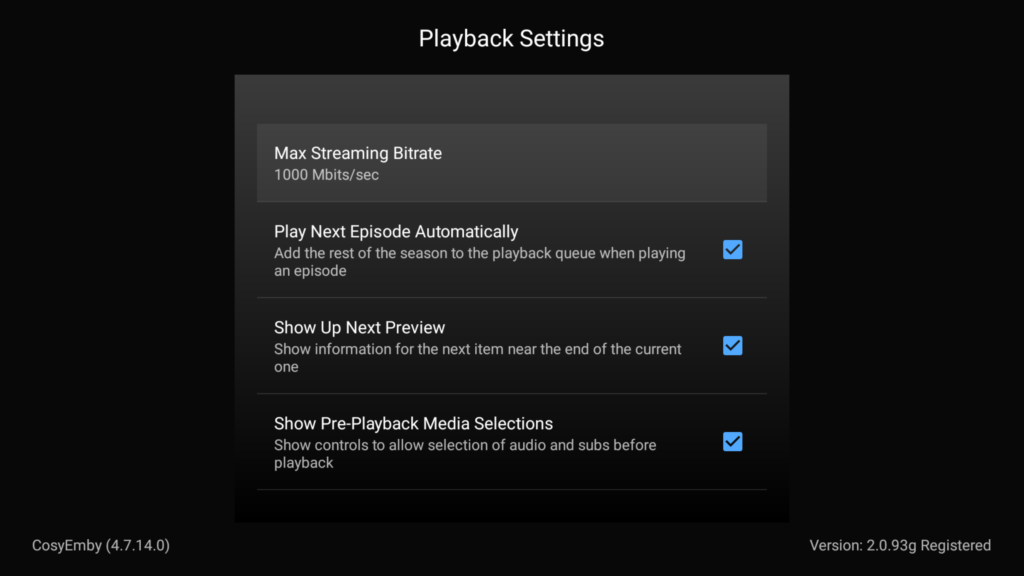
Click on “PLAYBACK” to open the Playback Settings, the click on “Max Streaming Bitrate” to open up the list.
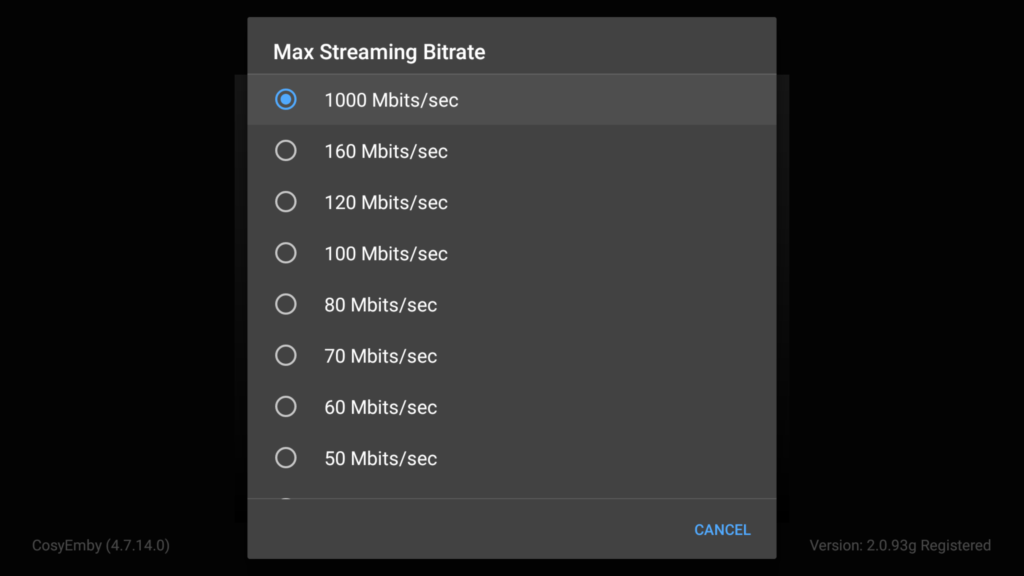
Then select the highest option which is generally 1000 Mbits/sec (4k 160Mbps on Apple TV) though most apps do offer “AUTO” but I would still change to the specs above just to be safe.
That’s it regarding the Playback Settings, all other settings are user preference like Login options, Subtitles etc.
Some extra setting I would recommend to change are in the libraries themselves.
For instance click on Movies and along the top right you will see ABC, click on it and select Premier Date (or Date Added) and that will show all movies in the order added to CosyFin. The next stage is to click on the Settings Cog next to ABC and select then click on image size and select large. Then down to Grid Direction and select Vertical for best viewing. Of course this is all down to how you like things to look so don’t feel you have to do the above.